Understand How a SOC Works by Setting Up a Basic Monitoring Environment

Business Scenario
Welcome!
You are a Junior SOC Analyst at CyberSecure Solutions. Your organization wants to monitor its systems for suspicious activity.
Your task is to set up a basic monitoring environment, collect system logs, identify suspicious events, and investigate them as a SOC analyst would.


Pre-Lab Preparation
Topic : SOC Fundamentals
1) Introduction to Security Operations Center (SOC)
2) Roles and responsibilities of a SOC analyst
3) Security monitoring fundamentals
Task 1: Download the Wazuh OVA File
Open your browser and search for “(https://wazuh.com)” on your preferred search engine.
1
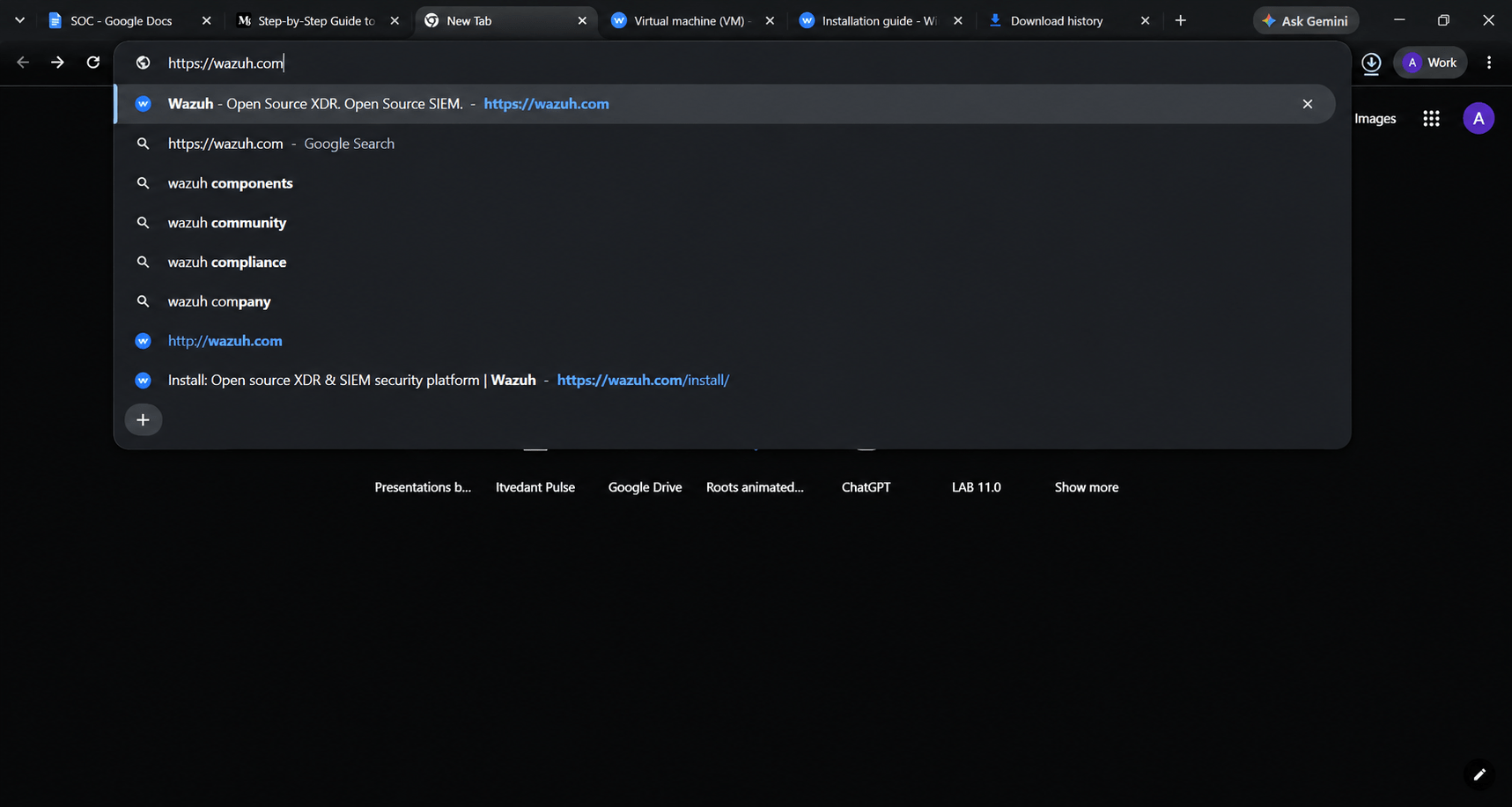
Click the first result, which should direct you to the official Wazuh website
2
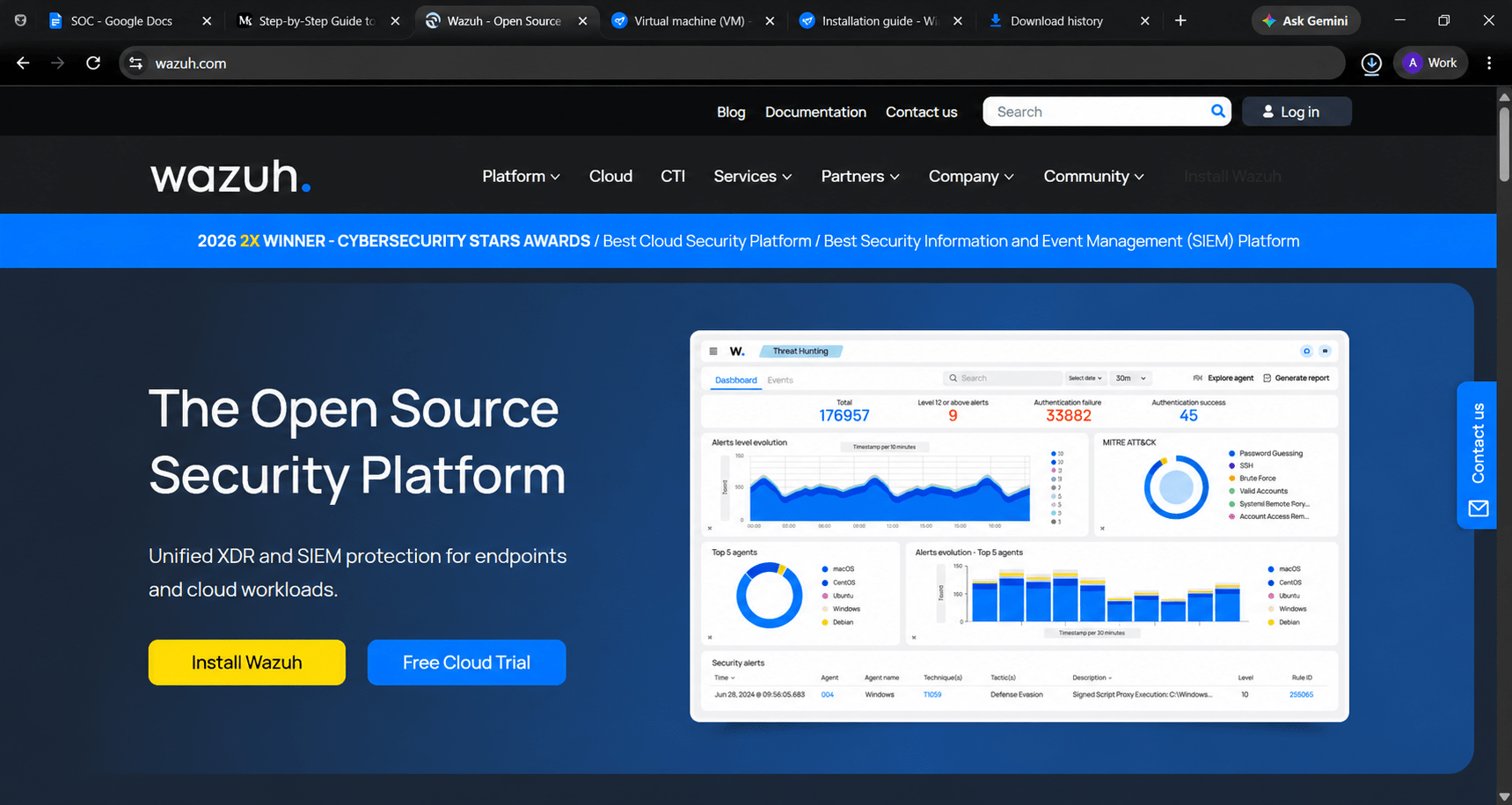
Navigate to the Documentation section from the homepage.
3
Now scroll down then you will find the documentation menu click on the “documentation” ,then locate and select Installation Alternatives.
a
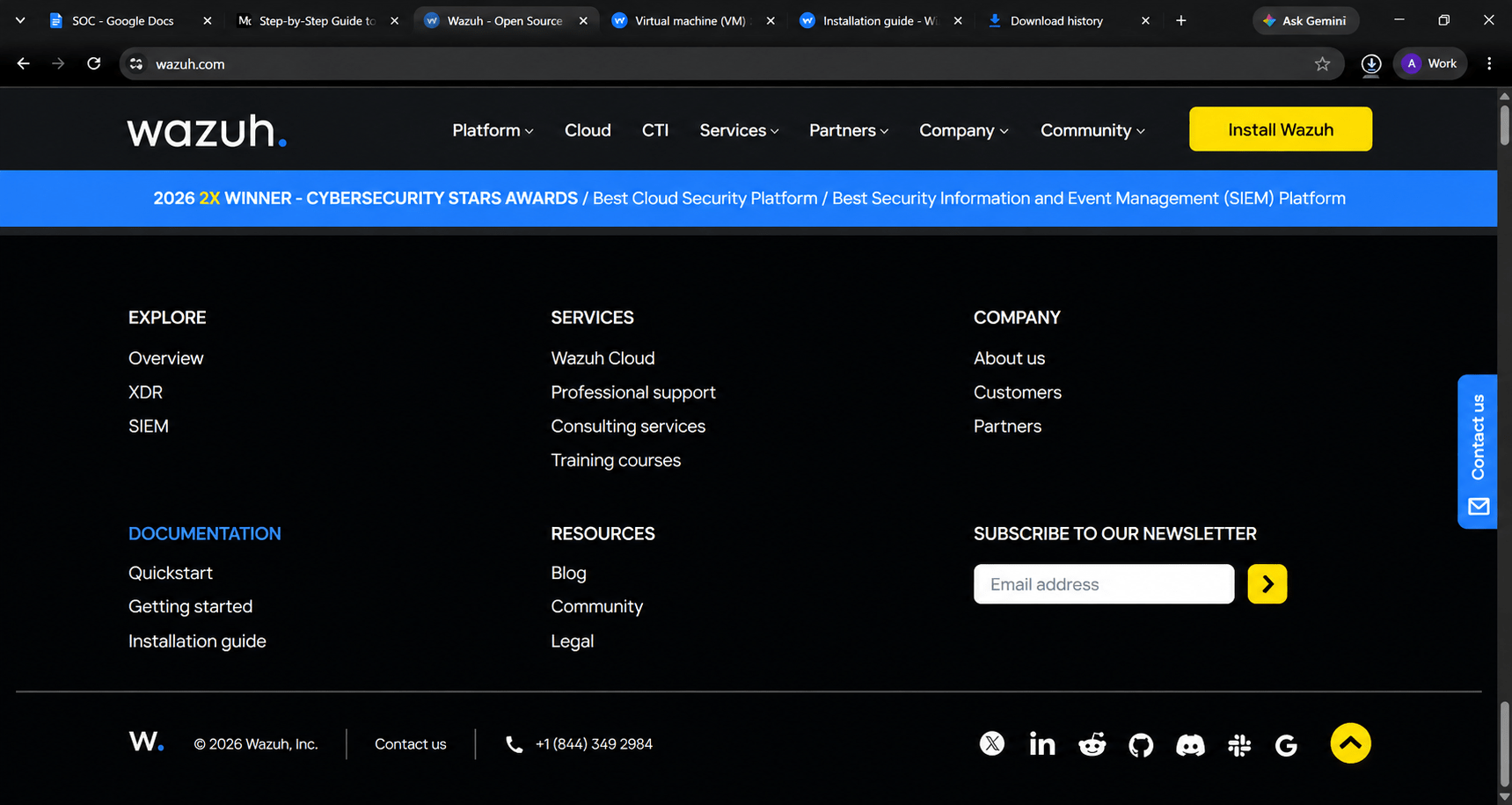
Then in the “installation alternatives” select Virtual machin(VM).
4
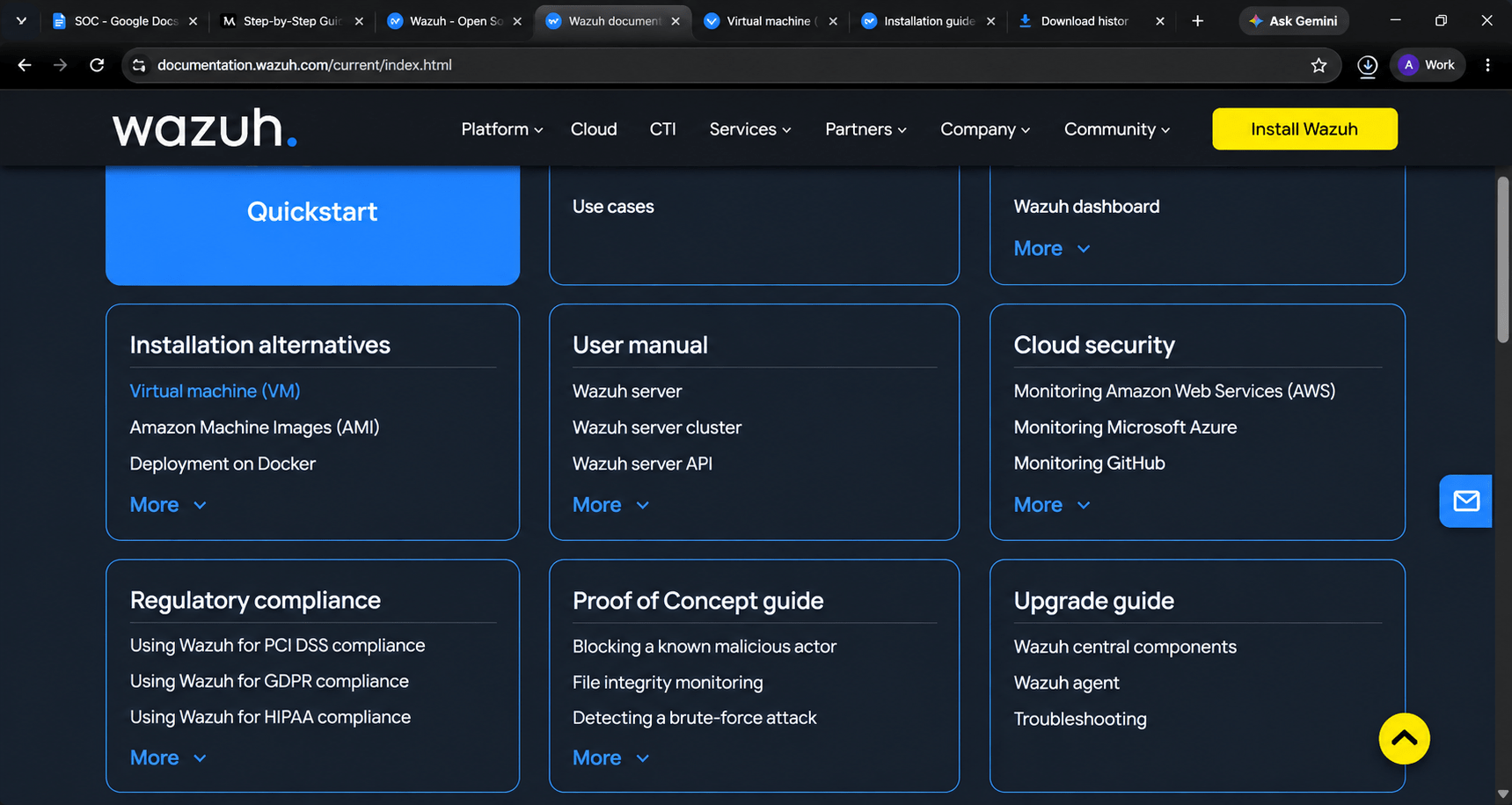
Choose the Wazuh Virtual Machine (OVA) option. By default, the documentation may display the latest version (e.g., 4.8). Use the version dropdown in the top-right corner to select Wazuh 4.14.7
5
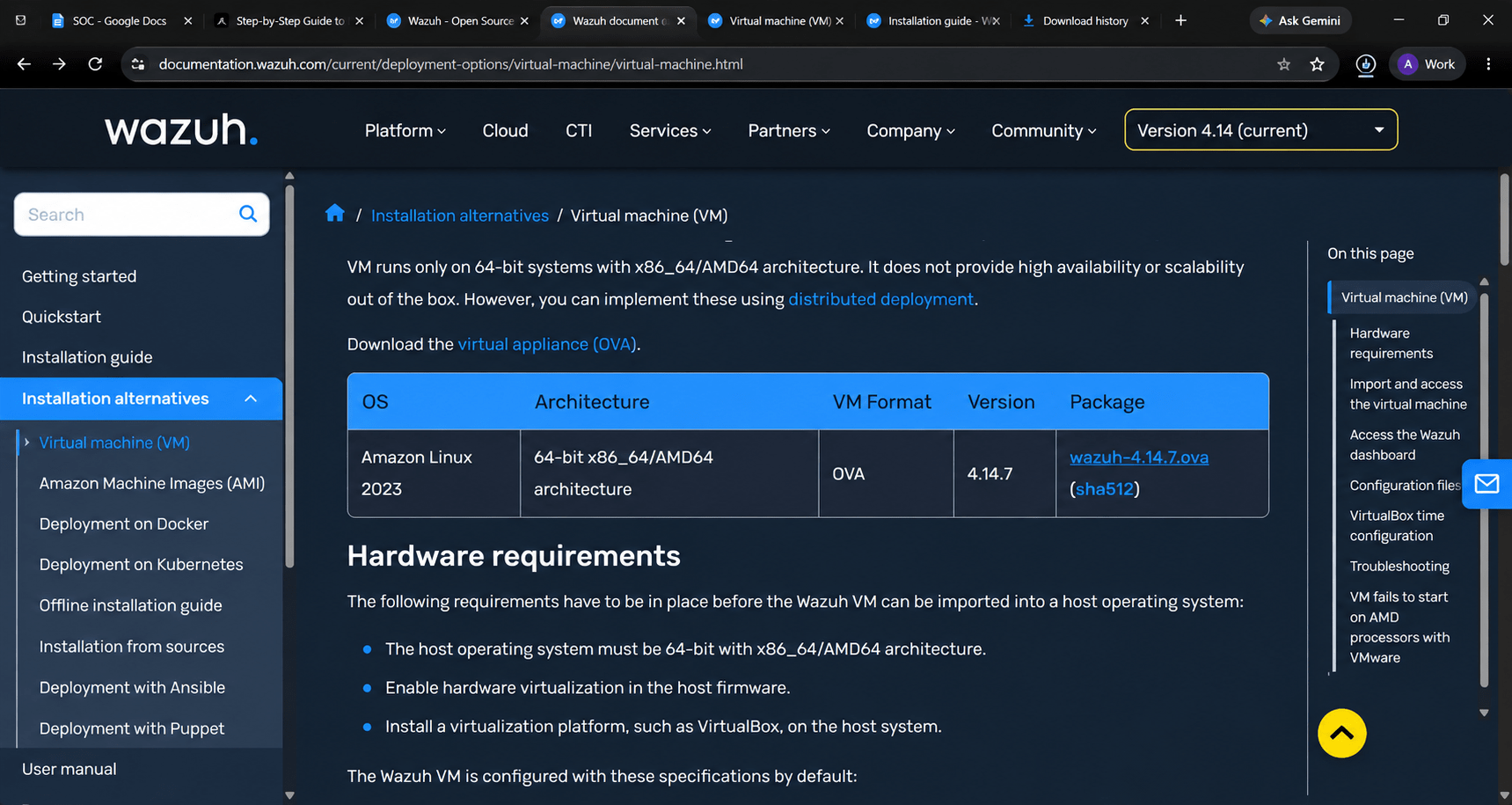
In the Packages List table, find the OVA file link for Wazuh 4.7 and click to download it. The file size is approximately 3-4GB, depending on the version.
6
Launch VMware Workstation 17 Pro on your system.
7
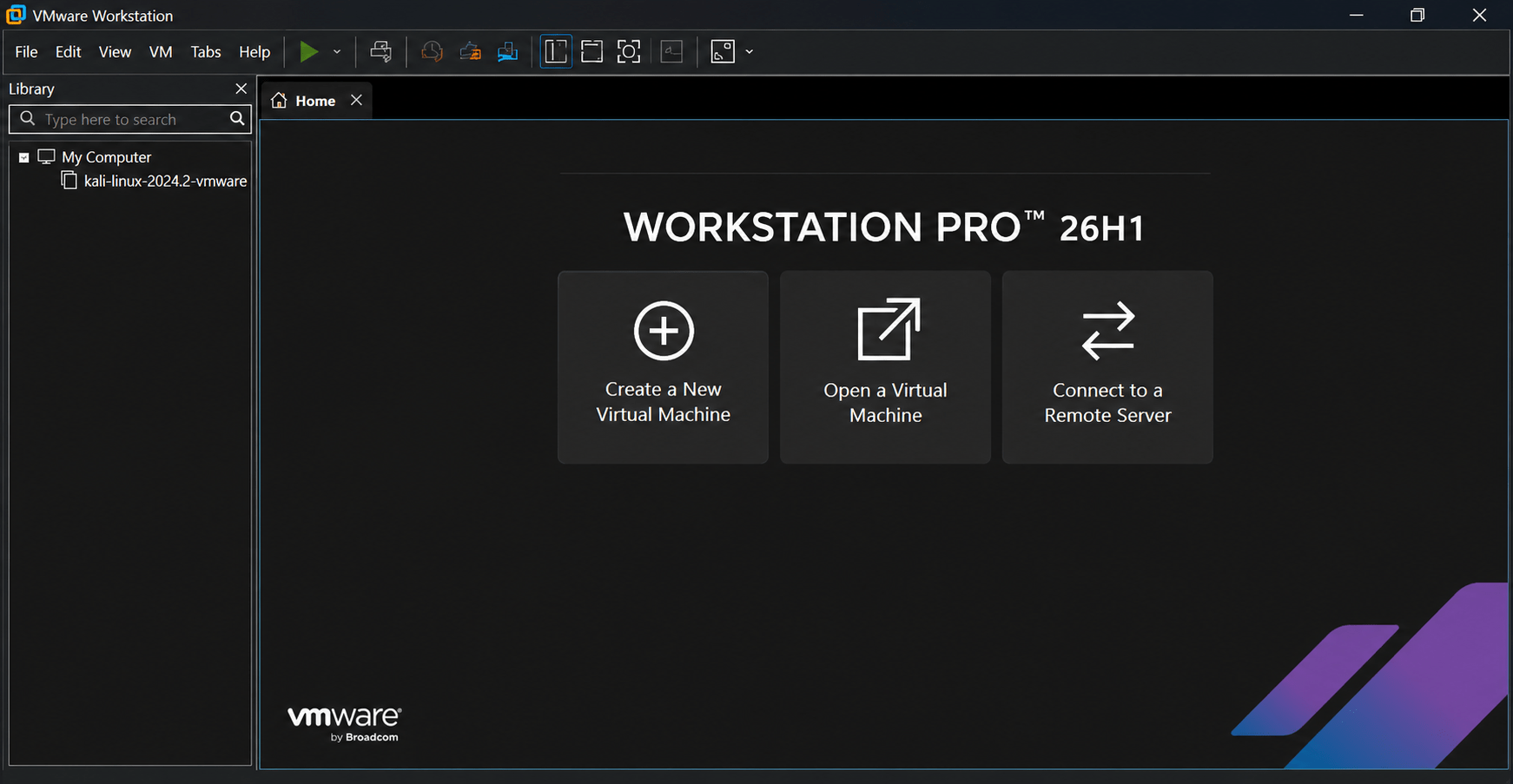
Click File > New Virtual Machine to start the VM creation wizard.
8
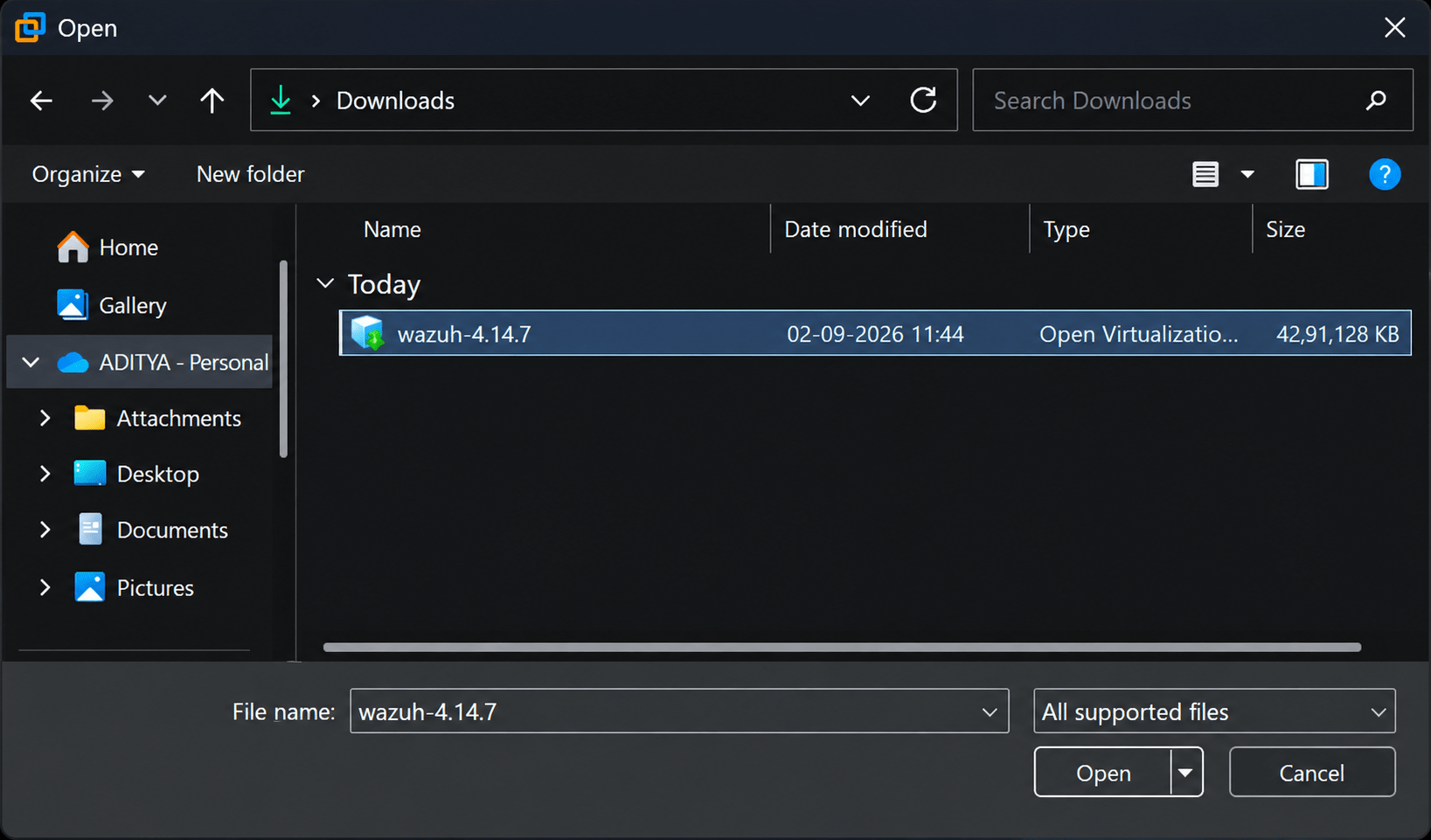
Select I will install the operating system later and click Next. Choose Linux as the guest operating system. Click Browse and locate the downloaded Wazuh 4.14.7 OVA file.
9
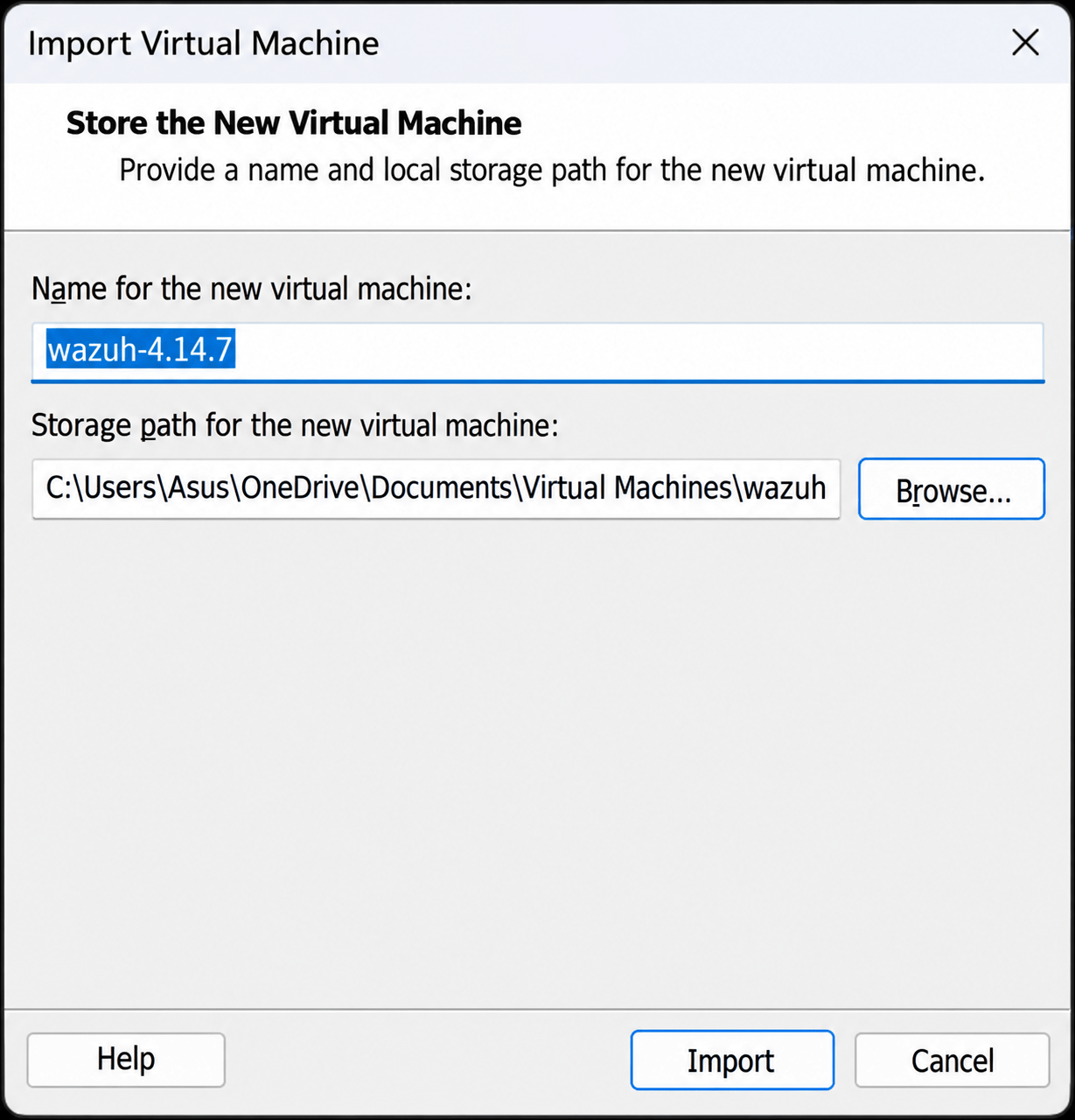
Click Import to begin importing the OVA file into VMware. This process may take a few minutes, depending on your system’s performance.a
10
Task 2: Power On the Virtual Machine
Select the Wazuh VM in VMware and click Power on this virtual machine.
a
The VM will begin loading the Wazuh system. This may take a few minutes as the system initializes.
b
Once the VM boots, you’ll be prompted with a login screen. Use the default credentials:
1
Username: wazuh-user
Password: wazuh
After logging in, the Wazuh system should be fully operational.
Access the Wazuh Web Interface
2
Check the IP address assigned to the Wazuh VM:
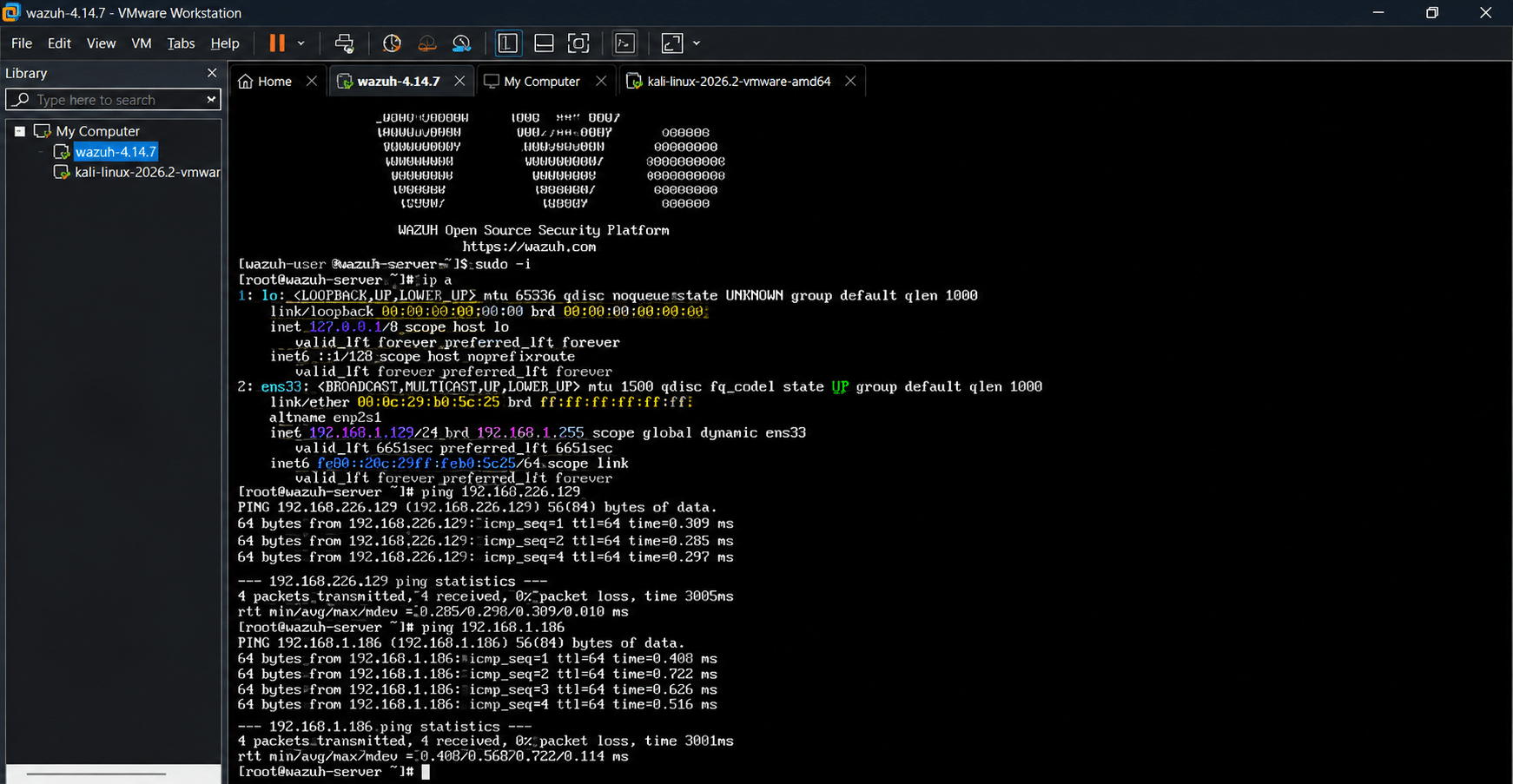
In the VM’s terminal, run the command ip addr or ifconfig to identify the IP address (e.g., 192.168.172.128). Note the IP address for the next step. On your host machine, open a web browser and navigate to https://<VM-IP-ADDRESS> (e.g., https://192.168.172.128).
a
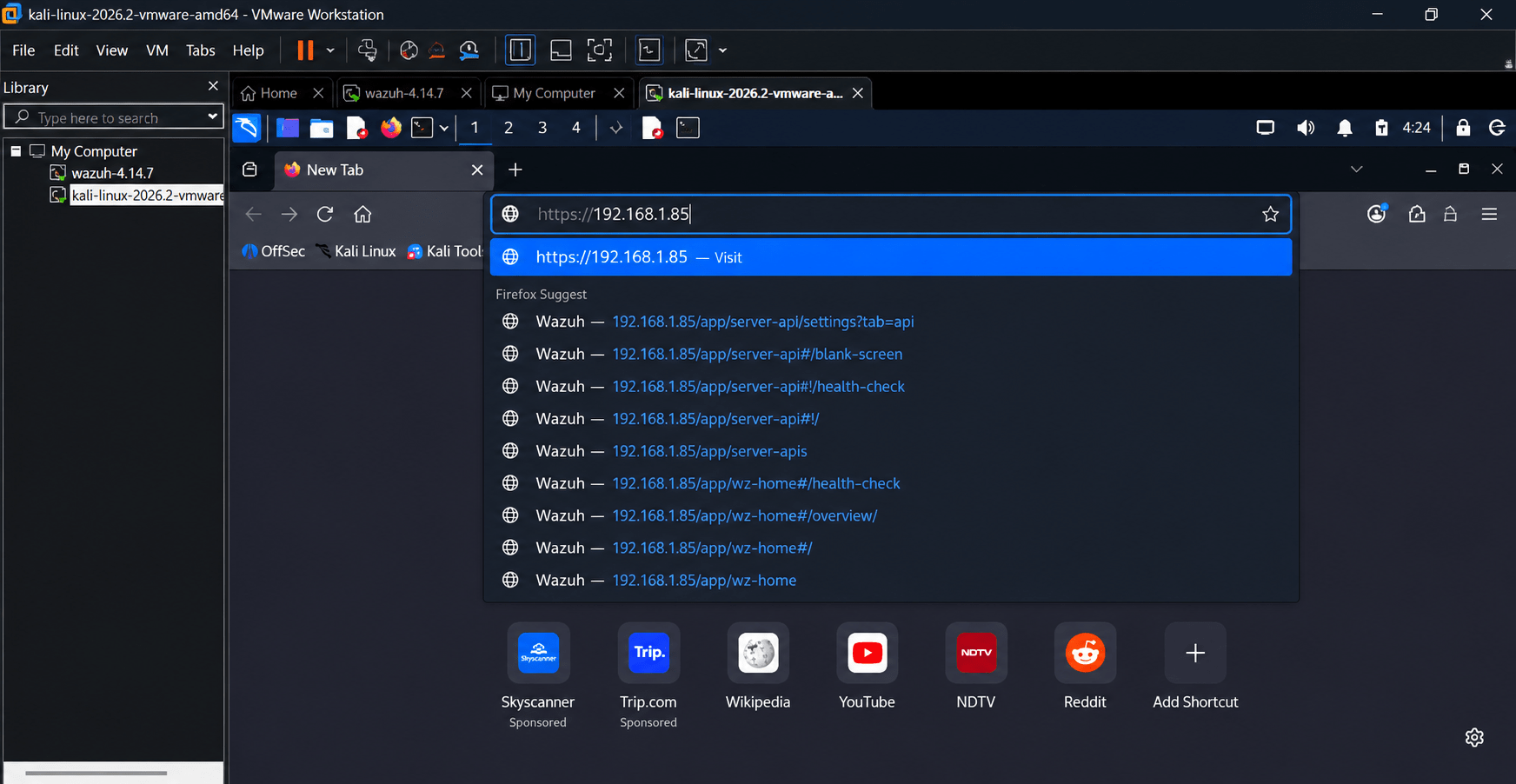
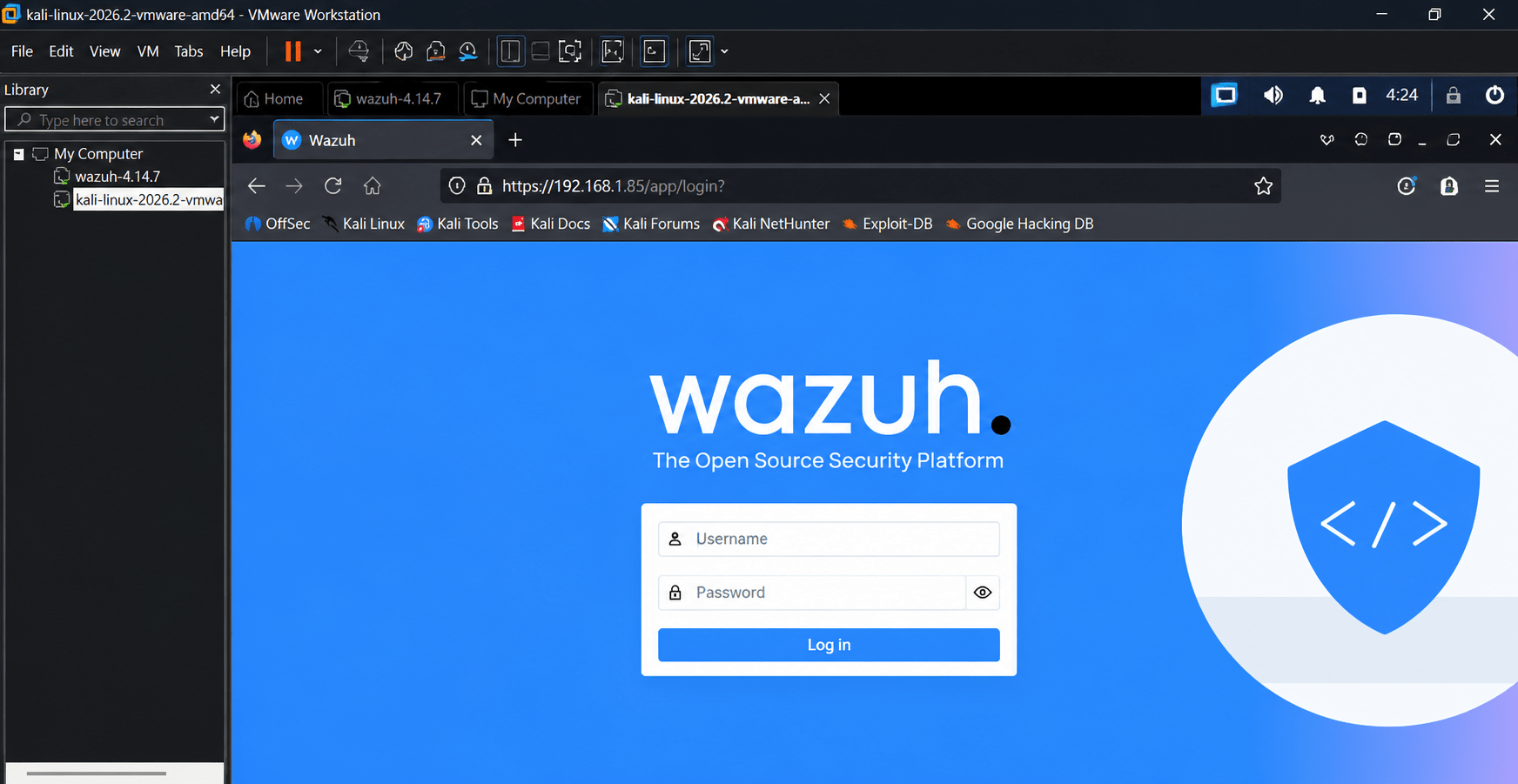
Then will get this interface.
b
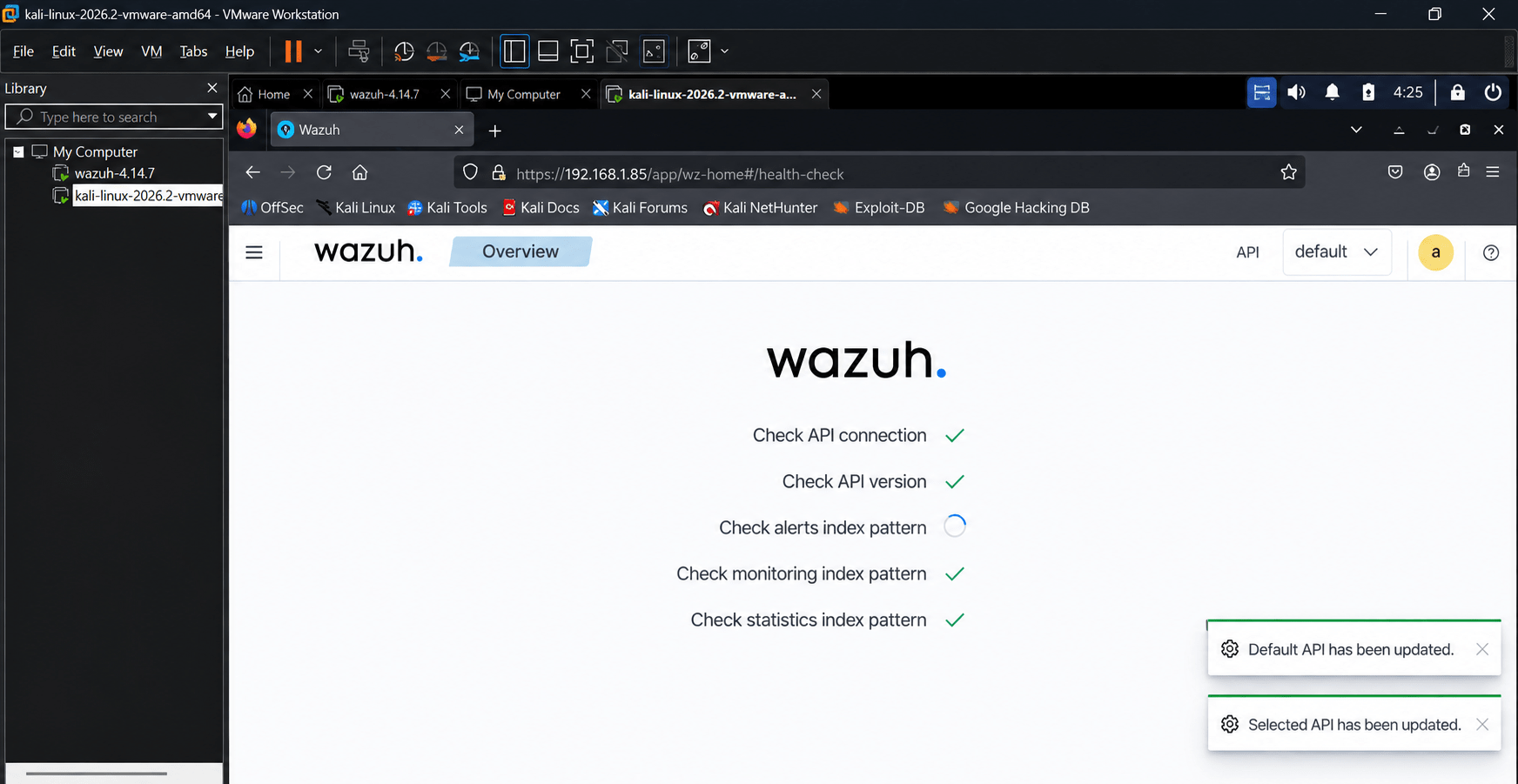
Task 3: Understand the SOC Environment
Identify the main components of a basic SOC
1
Steps
a
-
Open the monitoring/SIEM platform.
-
Identify the following components:
-
Endpoint
-
Log Source
-
SIEM
-
Alert
-
SOC Analyst
-
-
Understand how logs move through the environment.
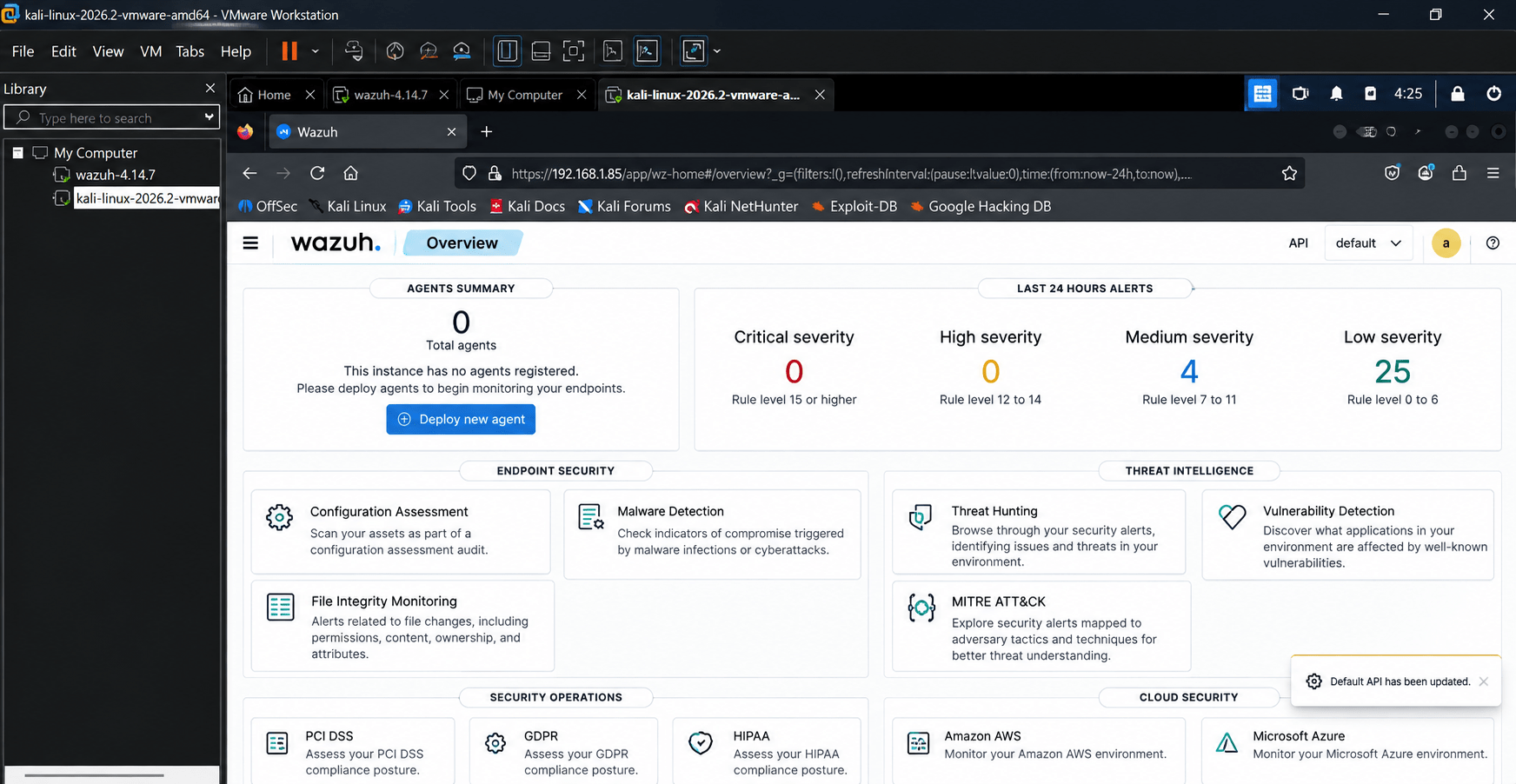
Task 4: Connect a System to the Monitoring Platform
Collect system logs for monitoring.
1
Steps
a
-
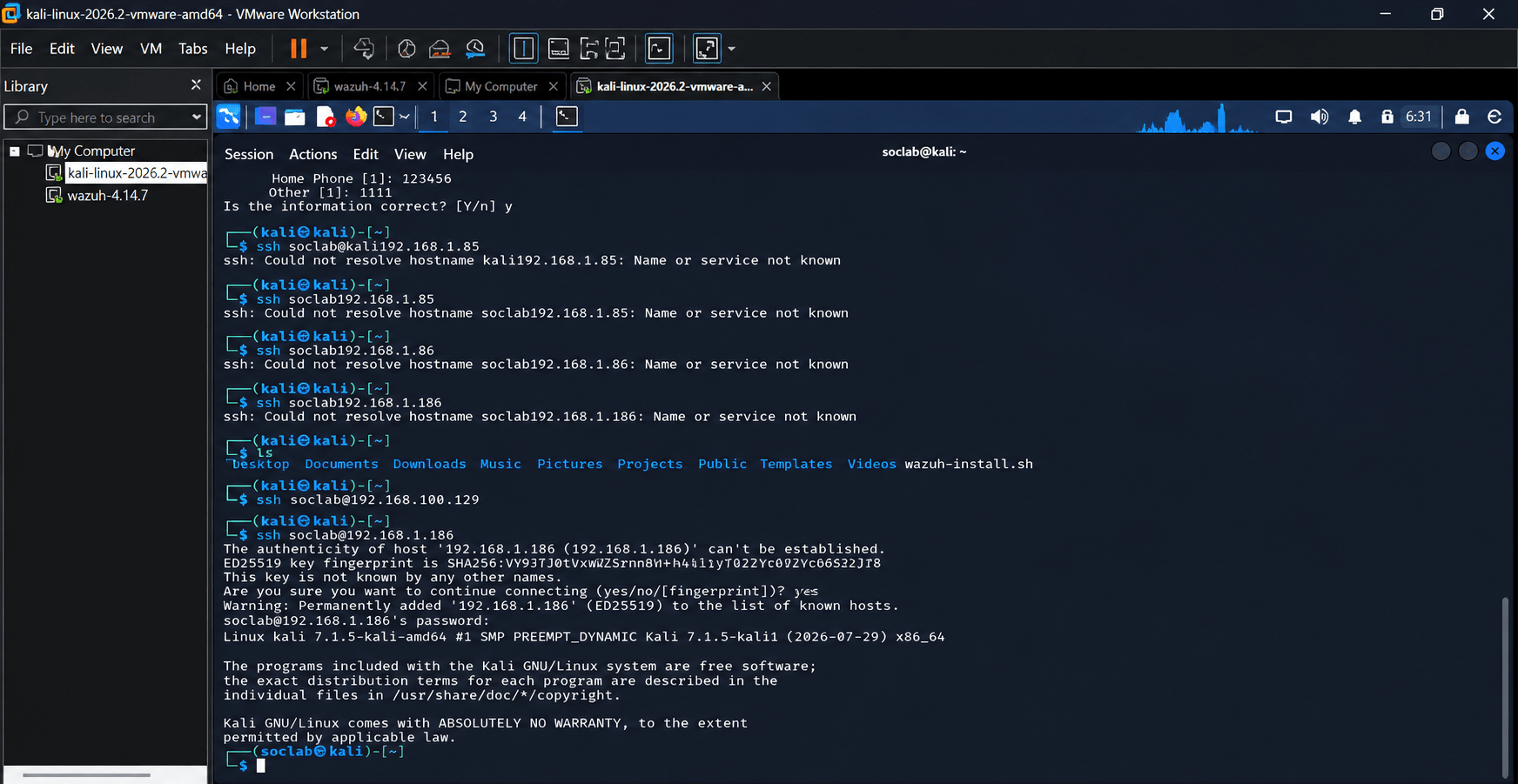
Start the Windows/Linux test machine.
-
Install the monitoring agent according to the instructor's instructions.
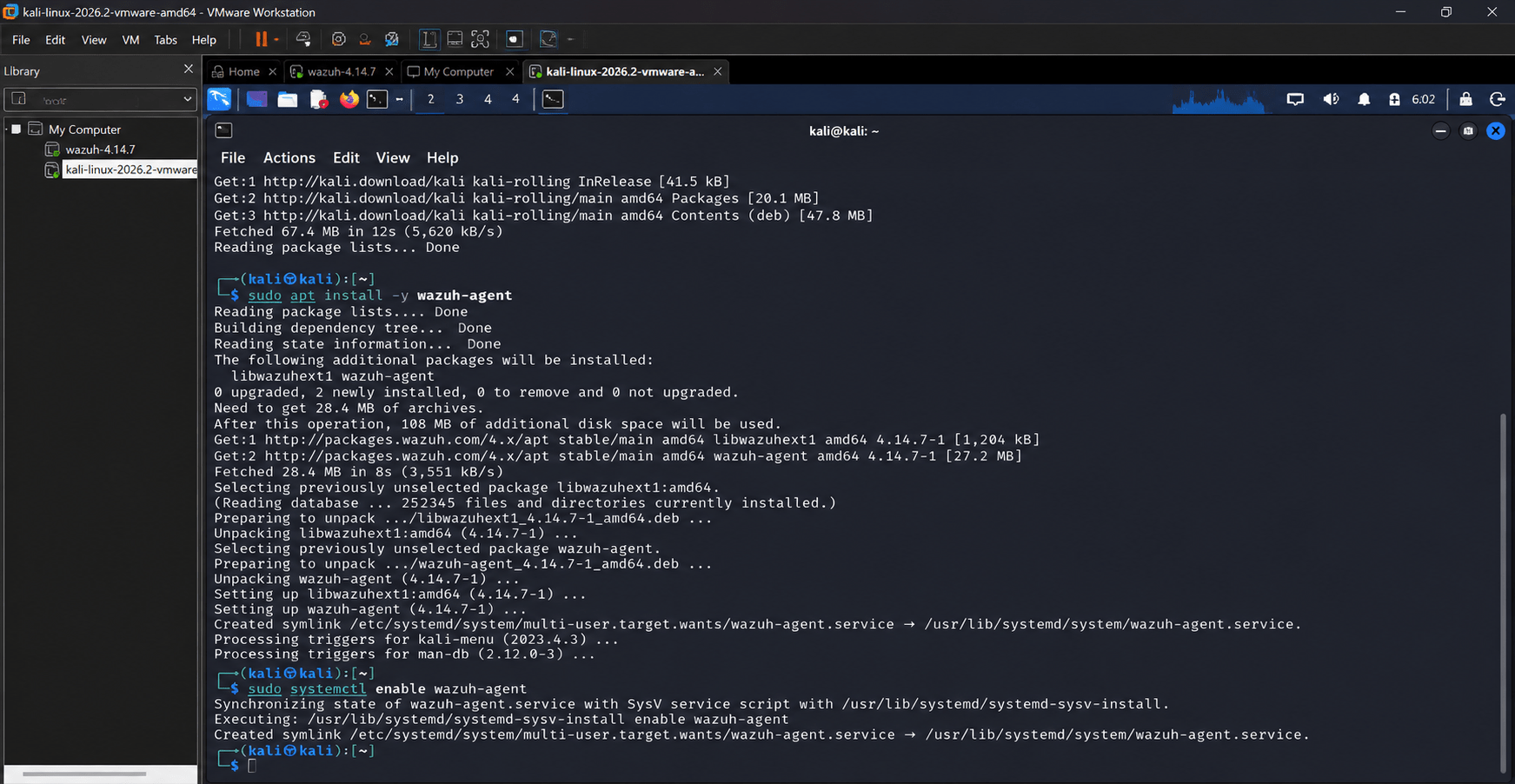
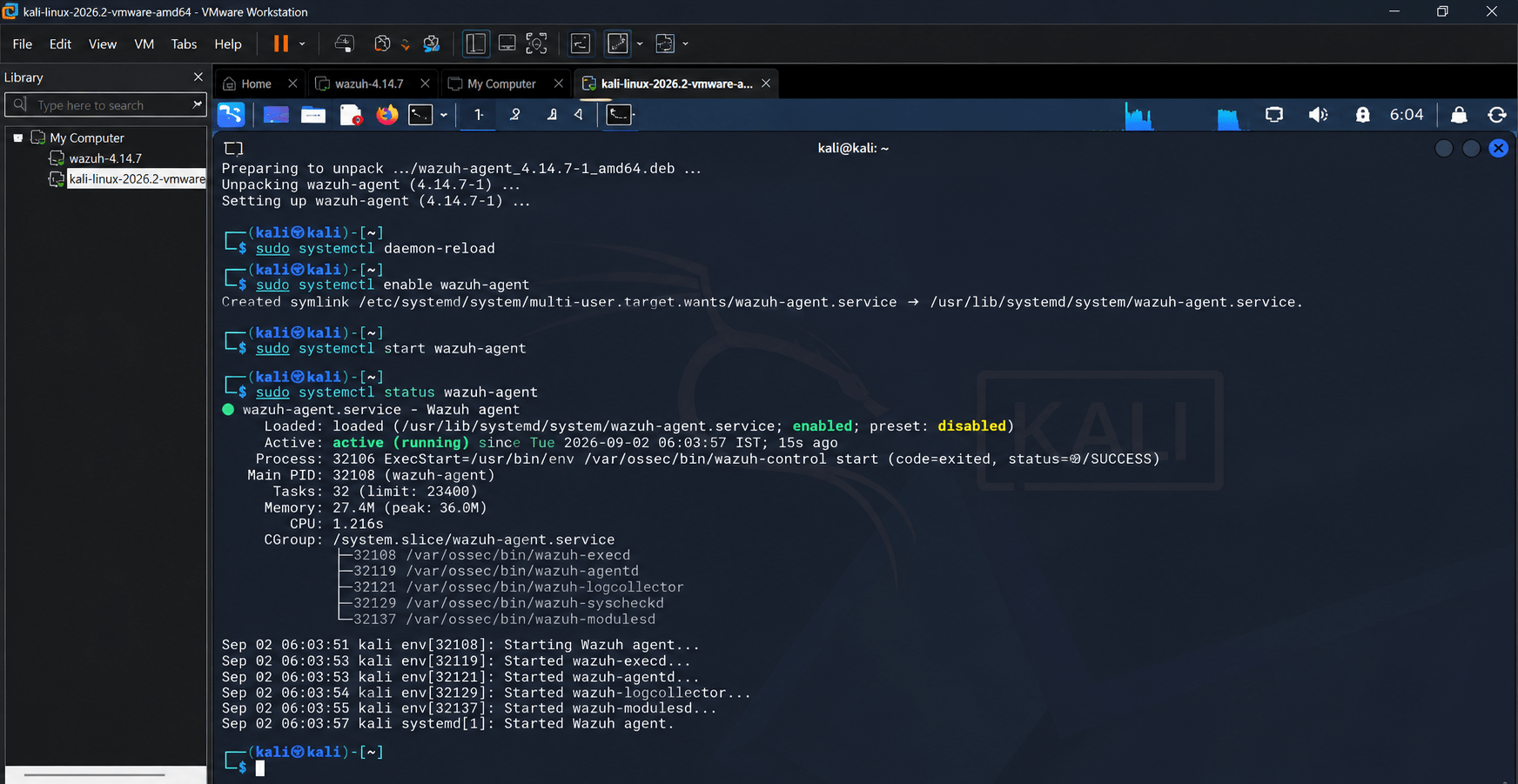
3.Register the endpoint with the SIEM.
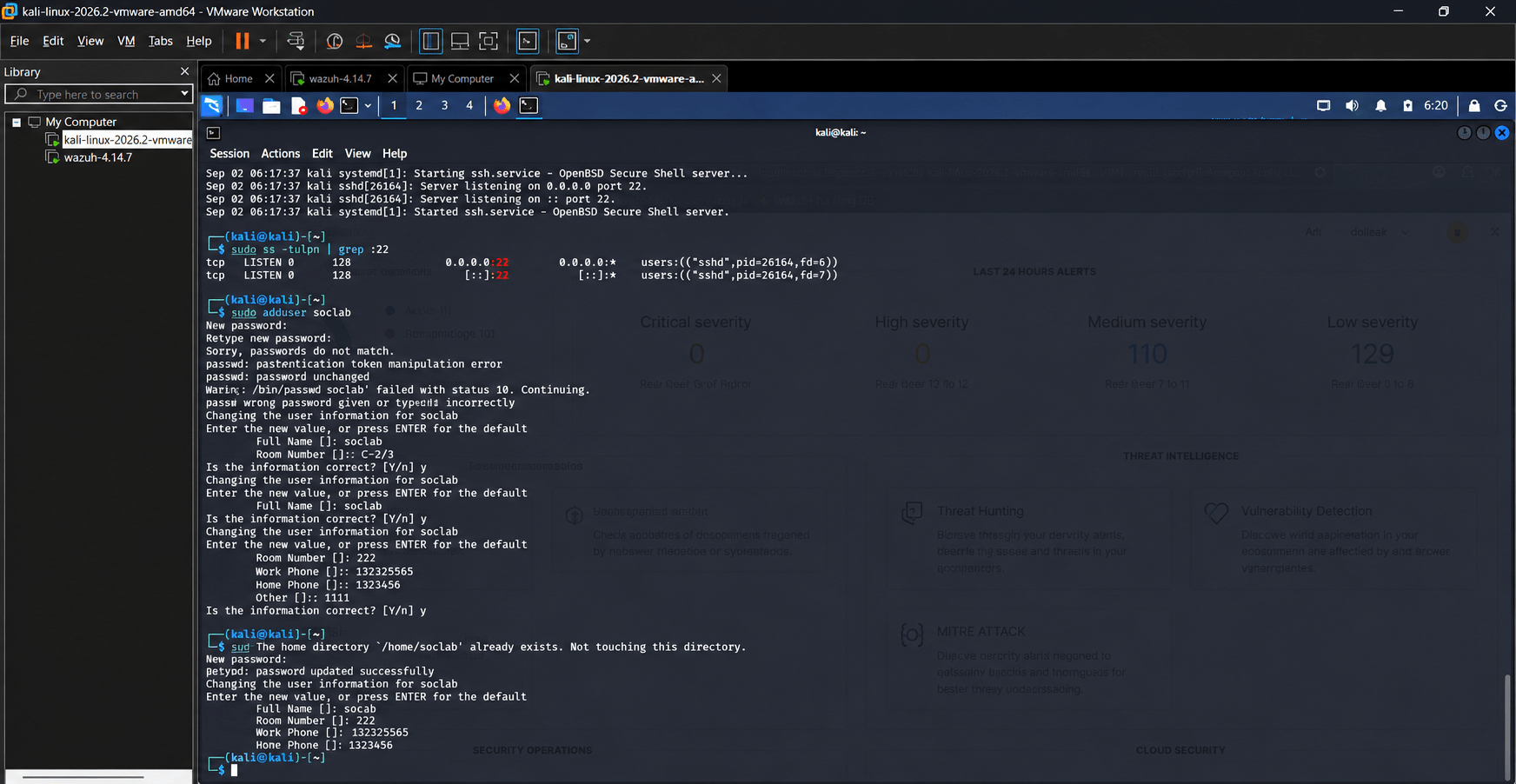
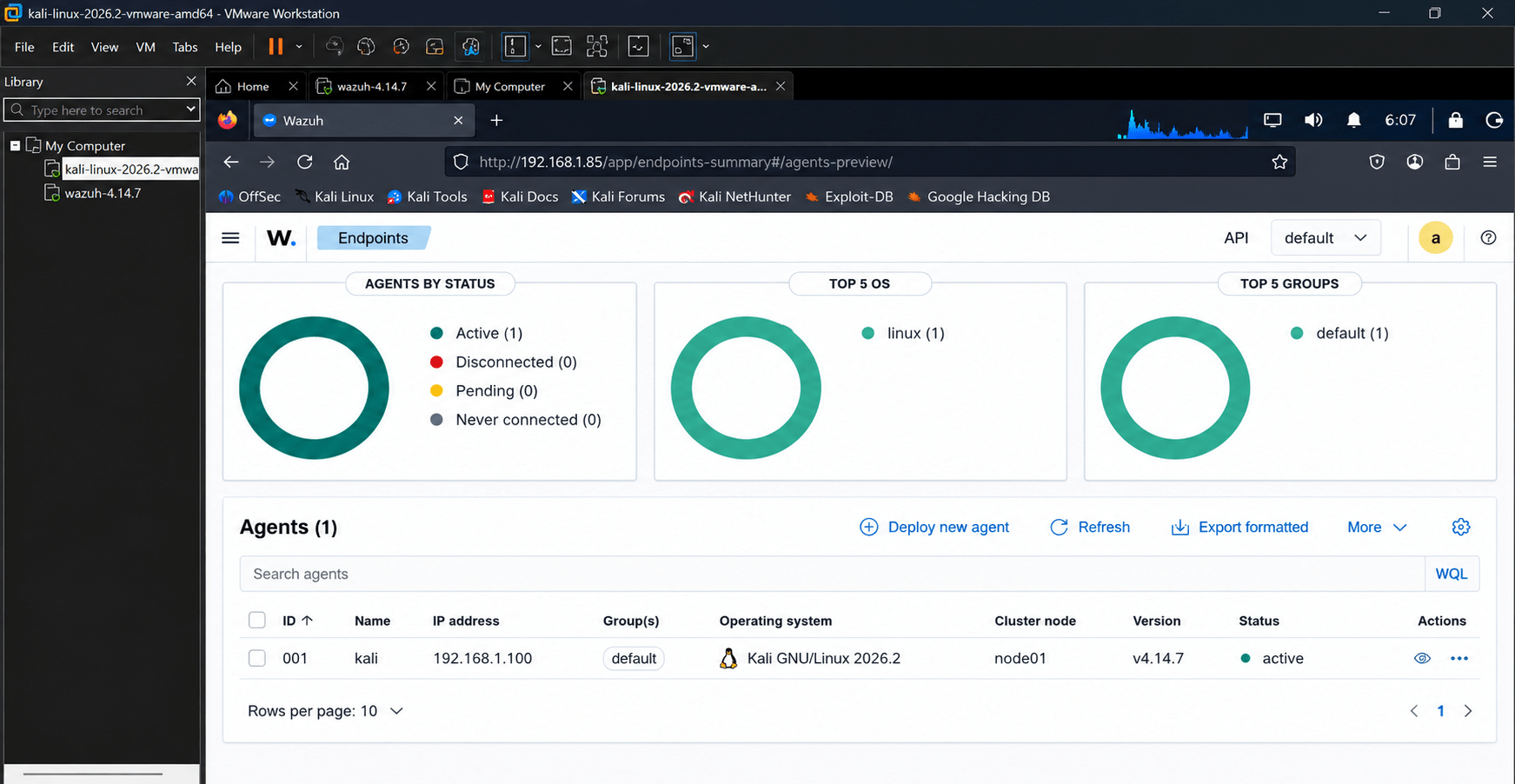
4.Confirm that the endpoint appears as Active/Connected.
5.Verify that logs are being received.
Expected Output
b
The test endpoint is visible in the monitoring dashboard and is sending logs.
Task 5: Generate Basic Security Events
Generate controlled events and observe how they appear in the SOC.
1
Steps
a
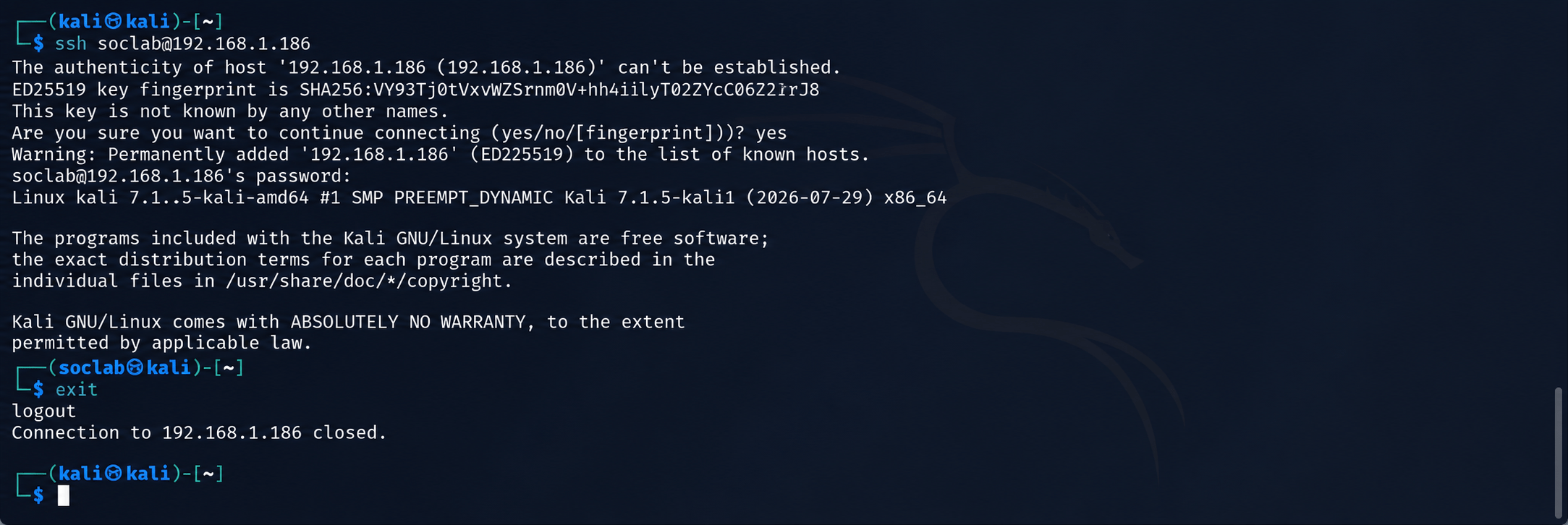
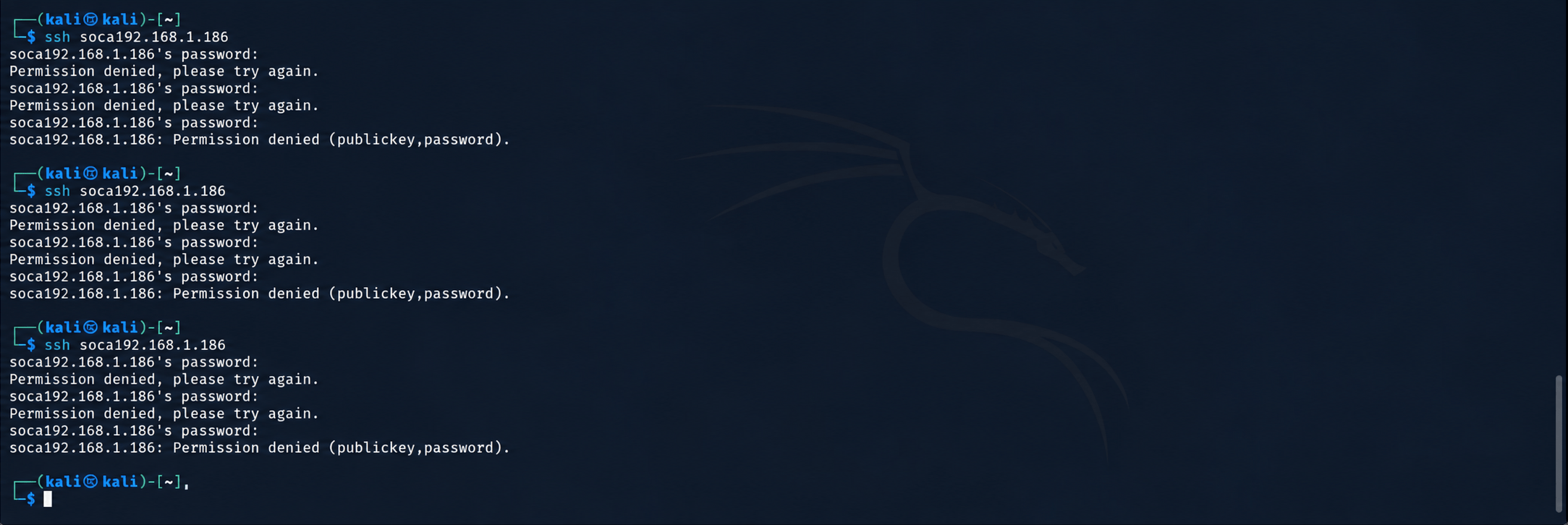
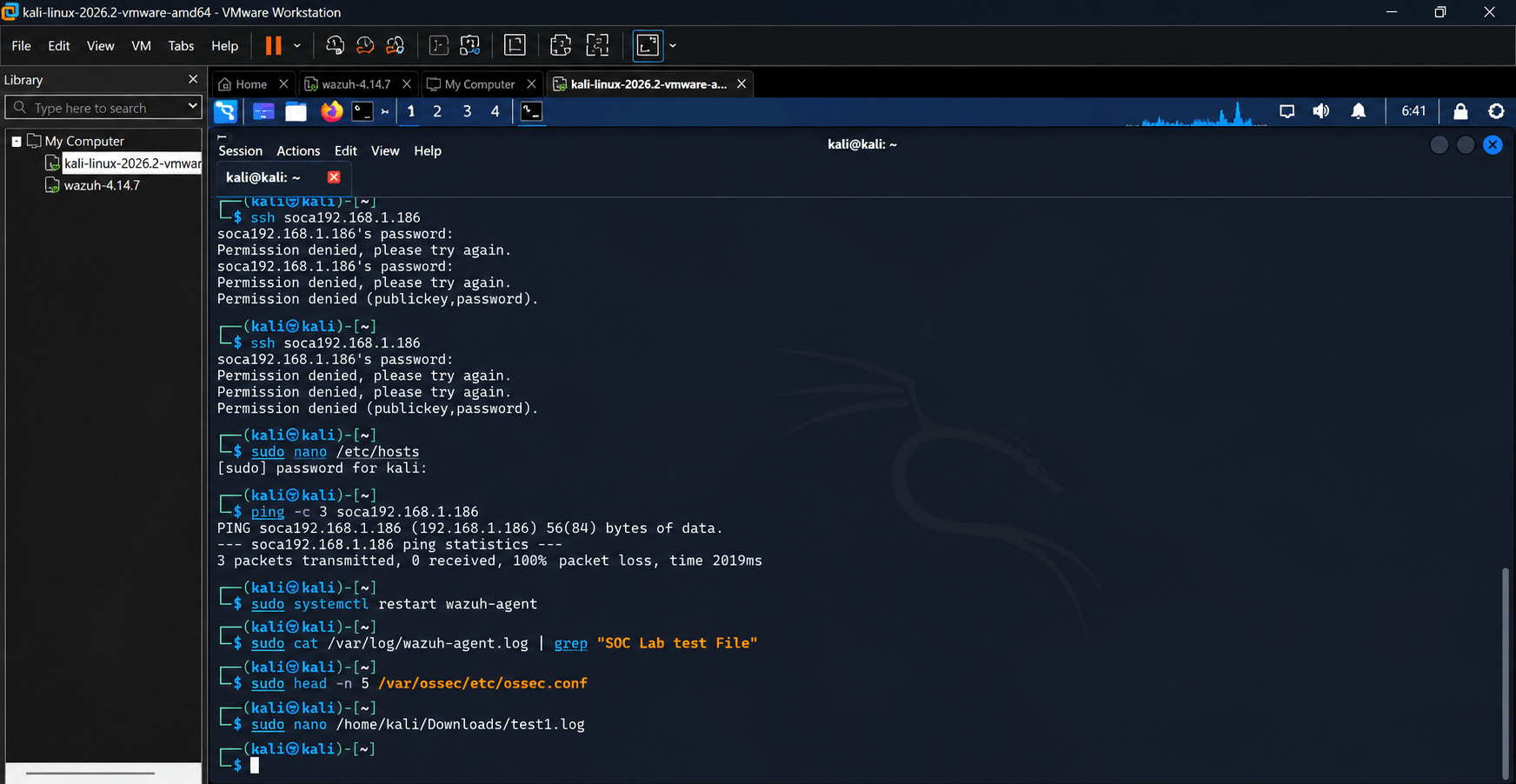
Perform safe activities on the test machine, such as:
-
Log in and log out.
-
Use an incorrect login password several times.
-
Create and delete a test file.
-
Start or stop a test service.
-
Make a permitted configuration change.
-
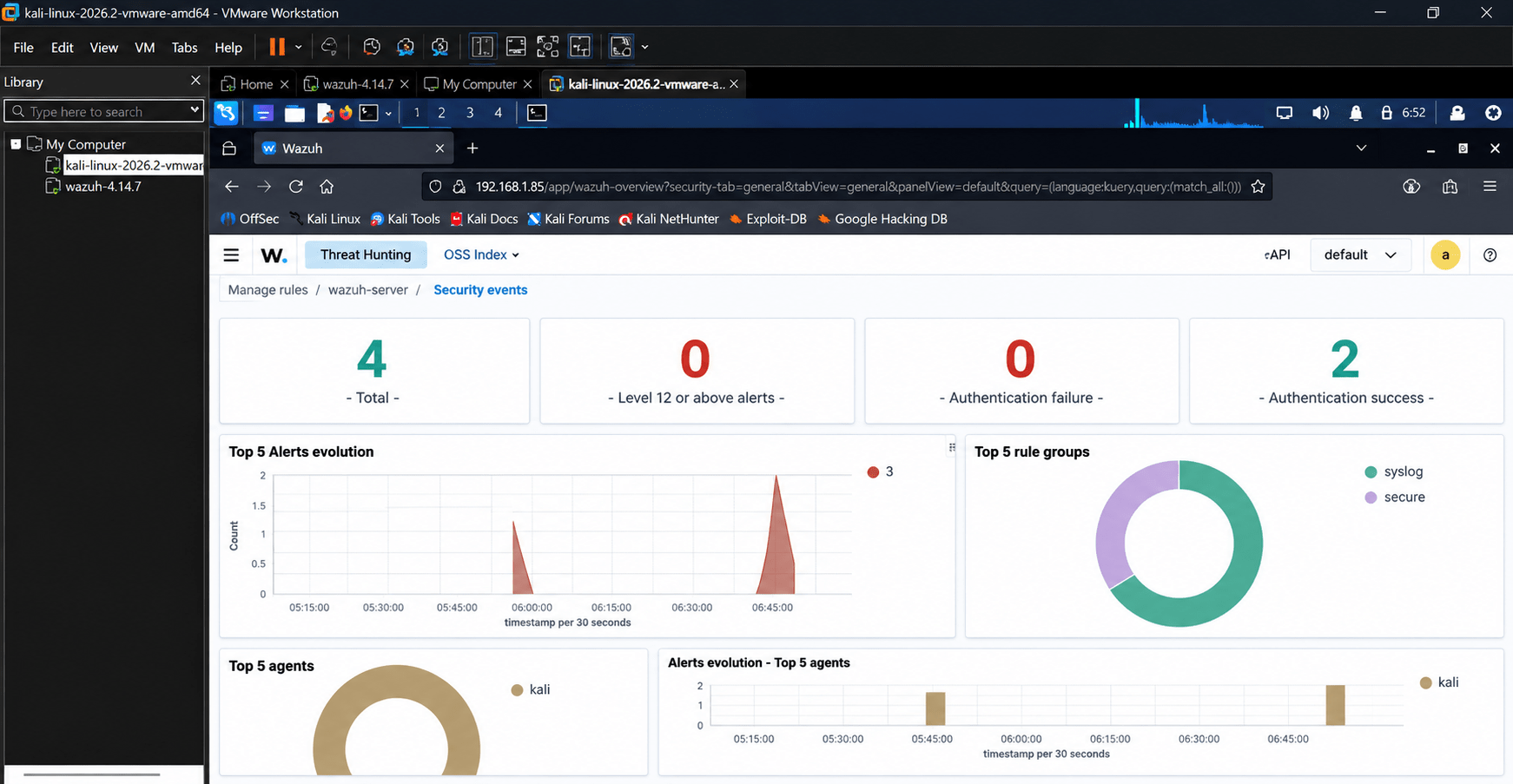
Open the SIEM dashboard.
-
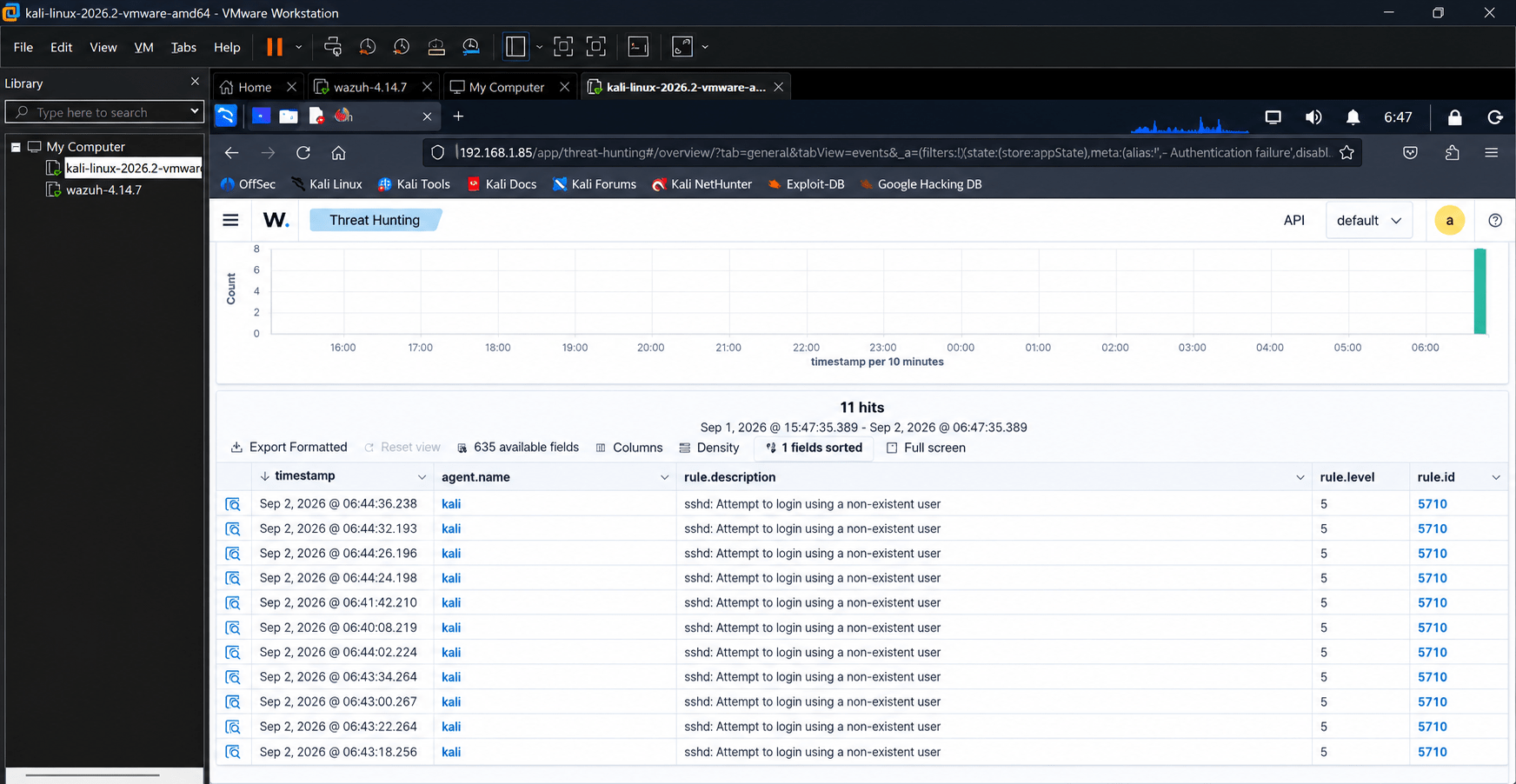
Search for the generated events.
-
Record:
-
Date/time
-
Event type
-
Source system
-
Username
-
Result
-
Expected Output
b
Students identify their generated events in the monitoring platform.
Task 6: Investigate a Security Alert
Learn how a SOC analyst investigates an alert.
1
Steps
a
-
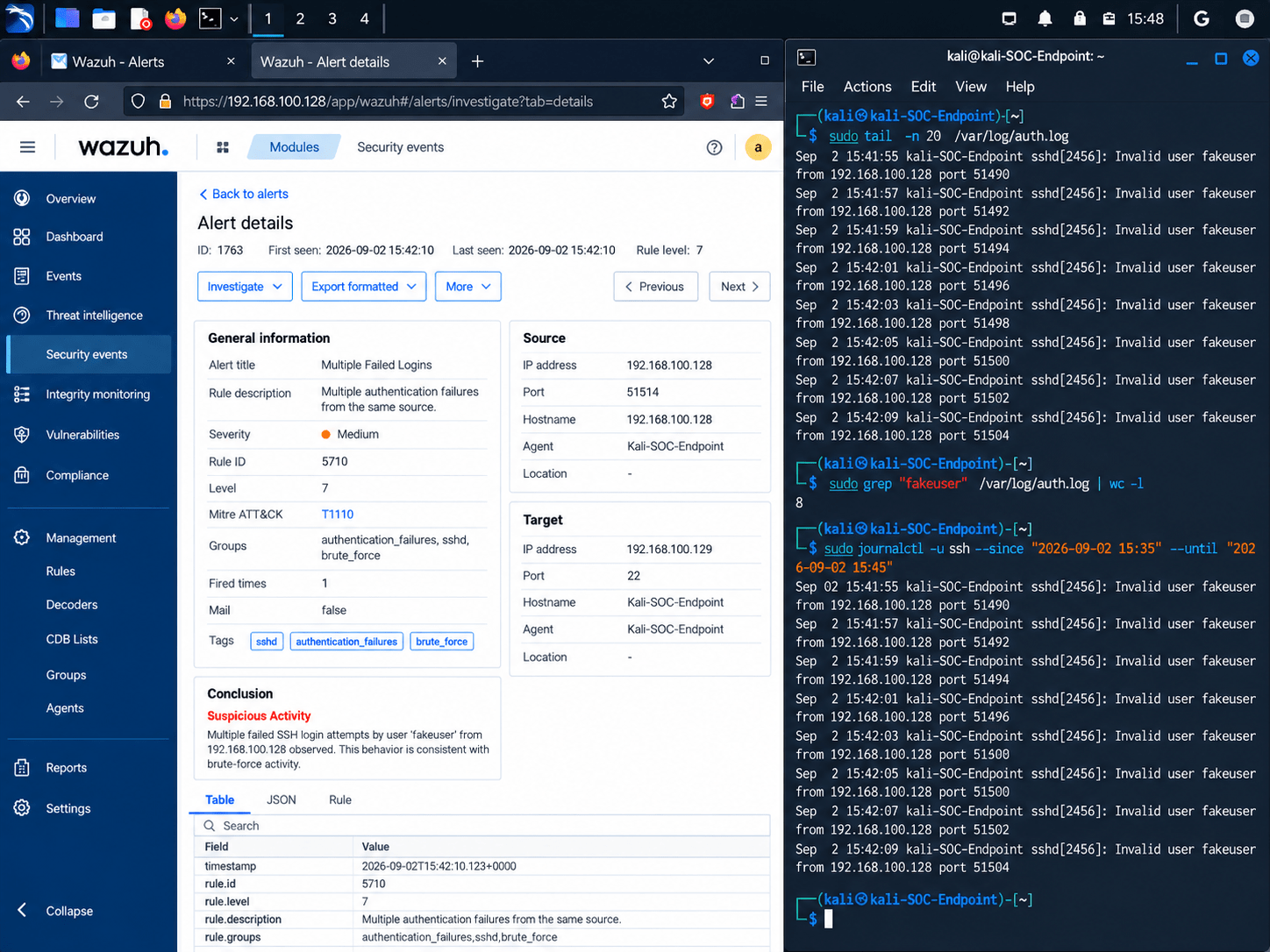
Open the alerts/security events section.
-
Select a suspicious event.
-
Examine:
-
Source IP
-
Username
-
Timestamp
-
Event type
-
Number of attempts
-
Target system
-
-
Determine whether the event is:
-
Normal activity
-
Suspicious activity
-
Potential incident
-
-
Record your conclusion.
Expected Output
b
Students produce a basic alert investigation.
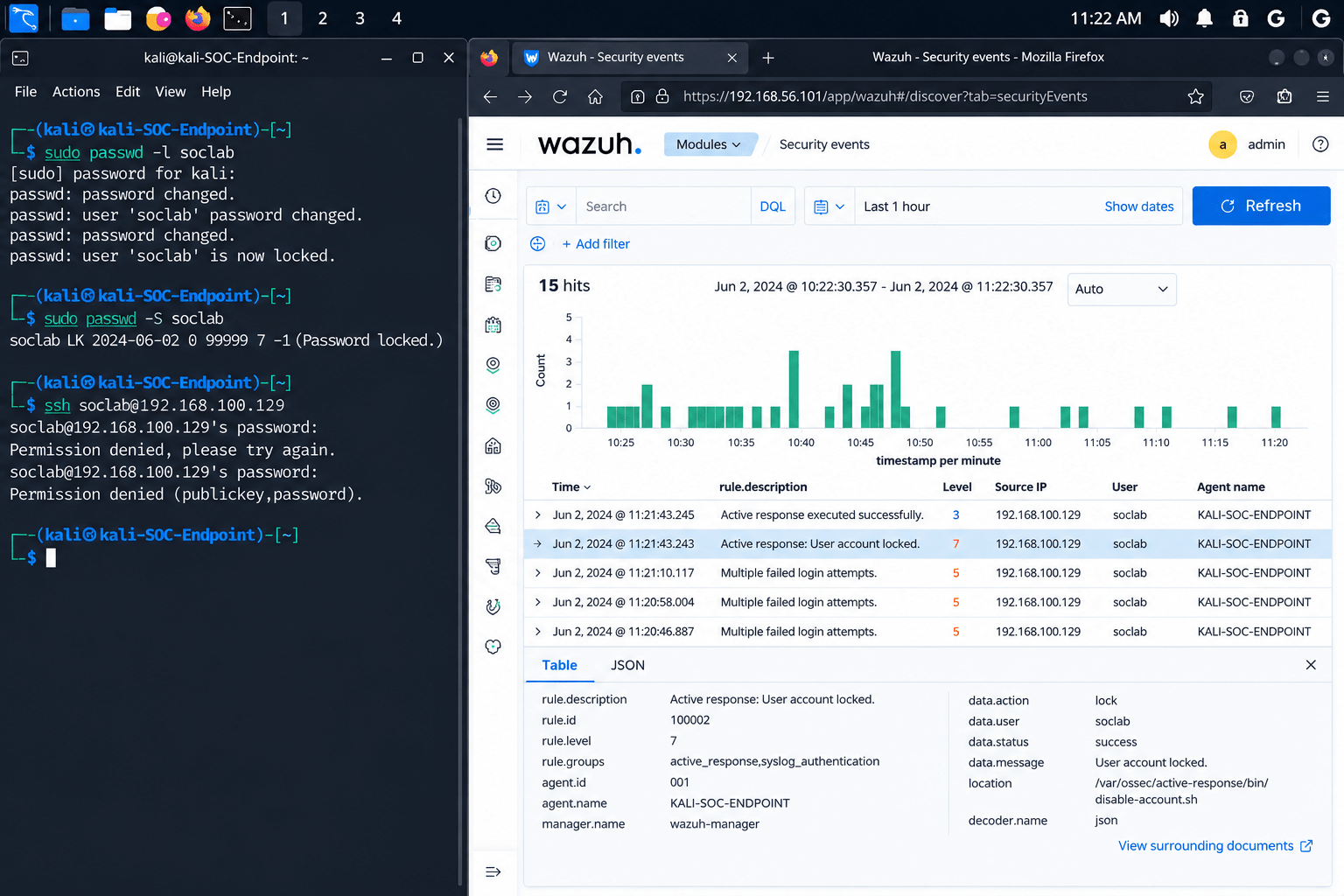
Task 7: Apply a Basic Defensive Measure
Understand how SOC analysts respond to detected threats.
1
Steps
a
-
Select a controlled suspicious event.
-
Identify the appropriate defensive action.
-
Apply the action in the lab environment, such as:
-
Disable a test account.
-
Block a test IP address.
-
Change a compromised test password.
-
Remove unnecessary access.
-
-
Verify that the action was successful.
-
Check the monitoring dashboard for new events.
Expected Output
b
Students demonstrate a basic detection-to-response workflow.
Task 8: Document the Incident
Create a basic SOC incident record.
1
Record:
a
| Field | Example |
|---|---|
| Incident ID | SOC-001 |
| Date/Time | 28-08-2026 10:30 |
| Alert | Multiple Failed Logins |
| Source | Test Endpoint |
| Severity | Medium |
| Status | Investigating |
| Action Taken | Account Disabled |
| Analyst | Student Name |
Example Finding
b
-
Incident:
Multiple Failed Login Attempts
-
Observation:
Multiple unsuccessful login attempts were detected
for a test account.
-
Investigation:
The events were reviewed for timestamp, username,
source and frequency.
-
Action:
The test account was temporarily disabled.
-
Status:
Resolved.
Expected Outcome
c
Great job!
You have successfully completed your SOC Monitoring Environment lab.
In this lab, you have: Understood how a SOC works, Set up a basic monitoring environment, Monitored security events and logs, Identified suspicious activities
You are now ready to move to the next stage of SOC operations.
Checkpoint
Next-Lab Preparation
Topic : SOC Fundamentals
1) Introduction to Security Operations Center (SOC)
2) Roles and responsibilities of a SOC analyst
3) Security monitoring fundamentals